Getting recordings, screenshots and videos off a Meta Quest — or loading movies and large files onto it — has always been more painful than it should be on a Mac. The headset doesn't show up as a drive in Finder, and the common workarounds are either slow, clunky, or built for developers.
Why it's harder than it should be
On Windows the Quest mounts as an ordinary MTP device and you can drag files around in Explorer. On a Mac there's no built-in equivalent — Finder doesn't mount it, the old Android File Transfer utility is unreliable on the Quest 3, and command-line tools like ADB are overkill for simply copying a video.
A native Mac app for the job
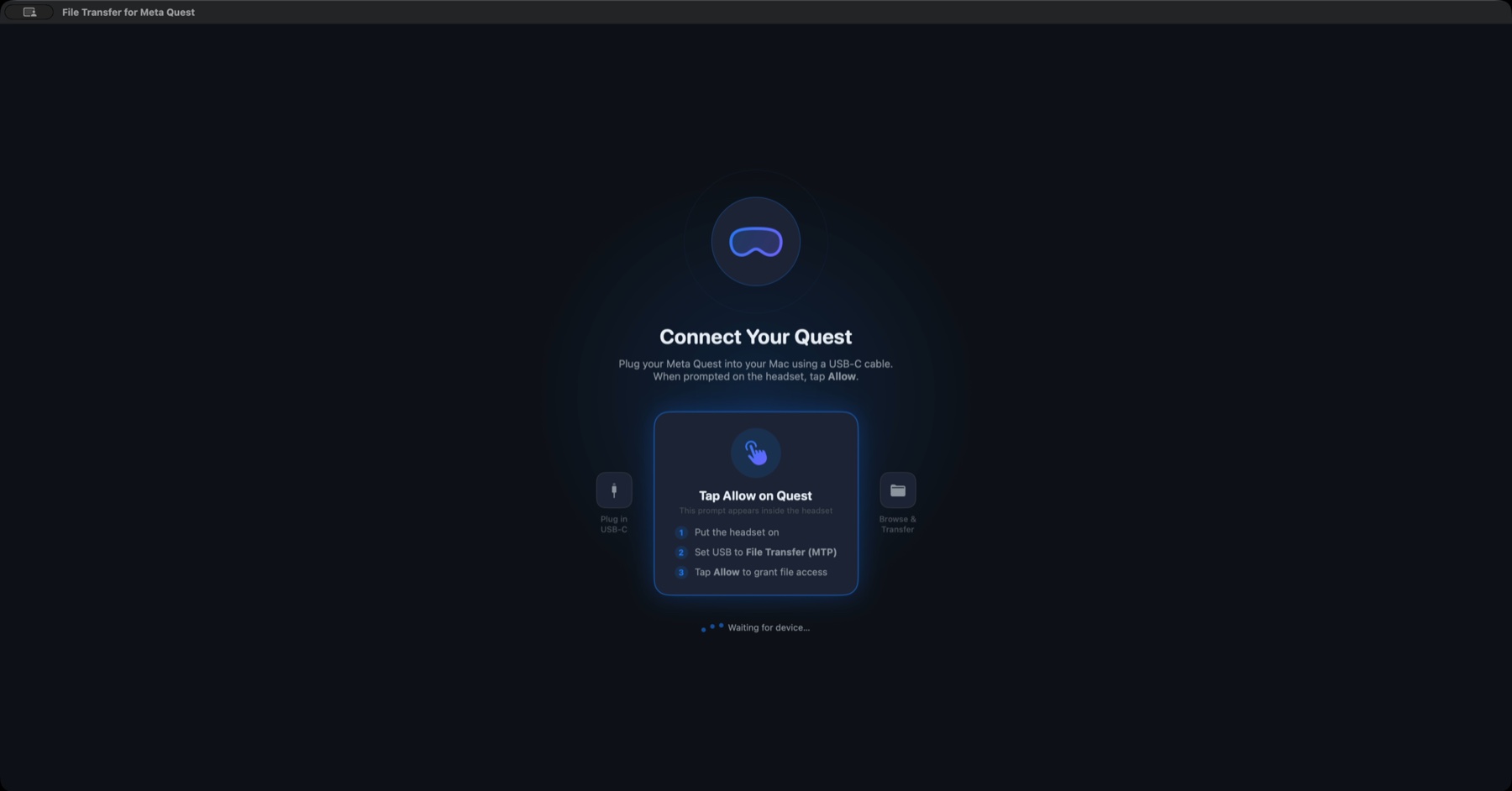
File Transfer for Meta Quest does one thing well: it connects your headset to your Mac over USB and lets you browse its storage and move files in both directions, from a clean native interface. Plug in a USB-C cable, tap Allow once inside the headset, and your Quest's storage opens right on your Mac.
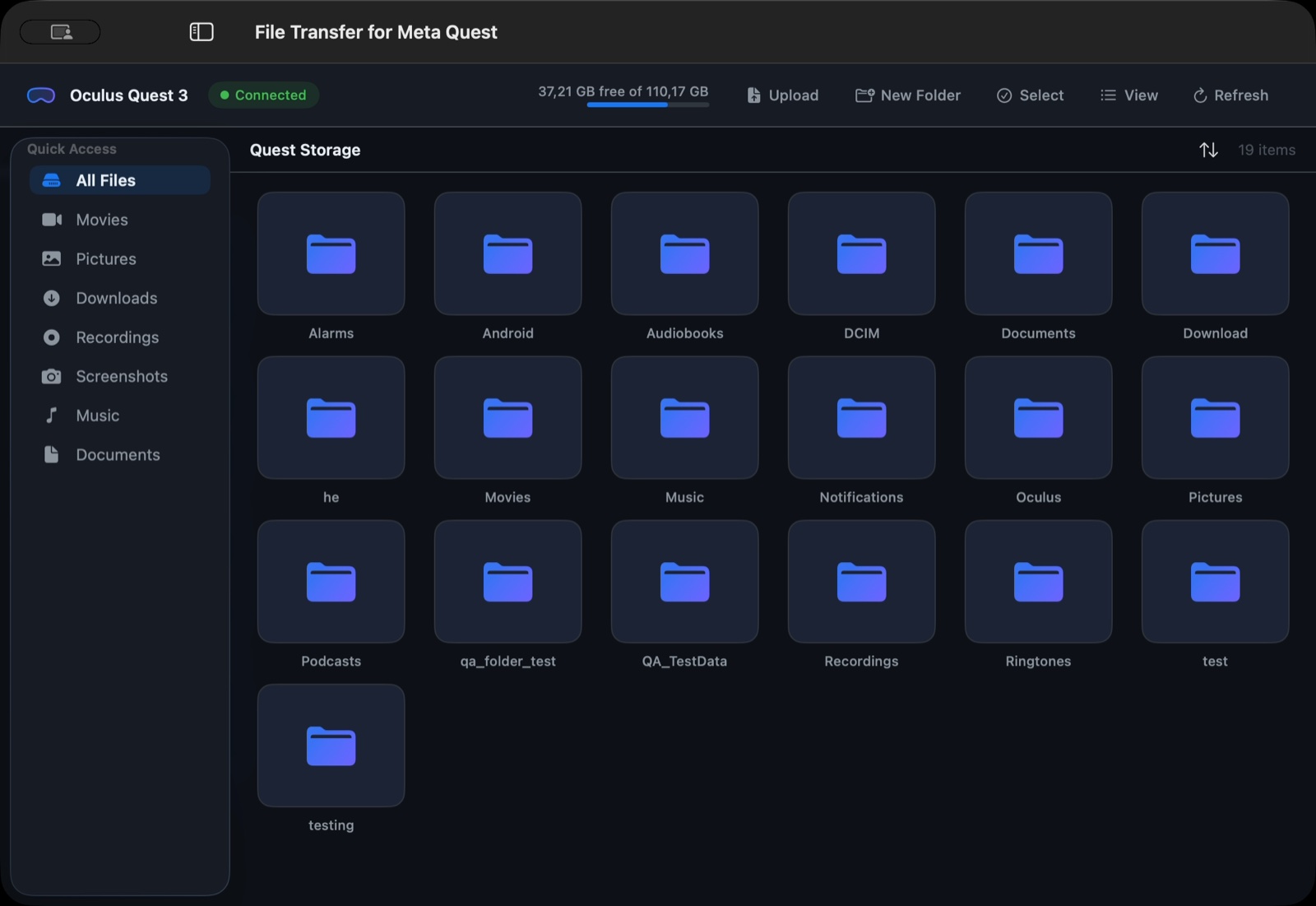
Once connected, you see your headset's full storage laid out like any Mac file browser — folders, sizes, and a live storage bar at the top.
What you can do
Browsing your Quest is free — open the app, connect, and explore everything on the headset without paying anything. When you're ready to actually move files, Pro unlocks the full set of actions:
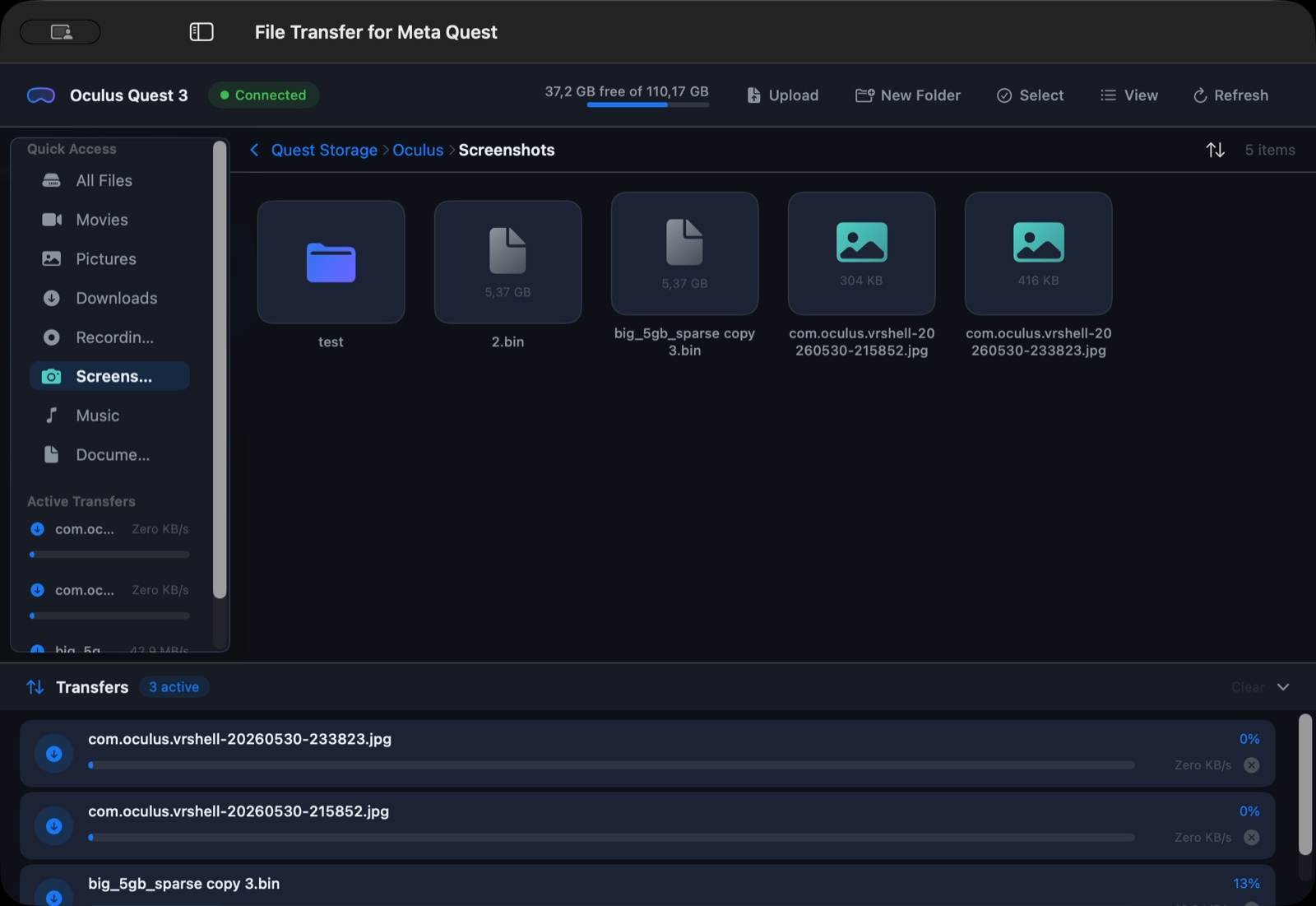
- Copy recordings, screenshots and videos from the Quest to your Mac
- Send files and entire folders from your Mac to the headset with drag and drop
- Move large media files reliably in both directions, with no size limit
- Create folders, and move, rename or delete files on the headset
- Select multiple files for batch download or deletion
İpucu: Everything happens locally over the USB cable. There's no cloud, no account, and no tracking — your files never leave your machine and the headset.
Getting started
You'll need an Apple Silicon Mac running macOS 13 or later, a Meta Quest headset, and a USB-C data cable. On the headset, set the USB connection to "File Transfer (MTP)" and tap Allow when prompted. It works across Meta Quest 1, 2, 3 / 3S and Quest Pro.
That's it — browse for free, and unlock transfers whenever you need them. File Transfer for Meta Quest is an independent third-party utility and is not affiliated with Meta.